Cinematic Background Portrait Prompts: Copy-Paste AI Photo Editing Ideas In 2026
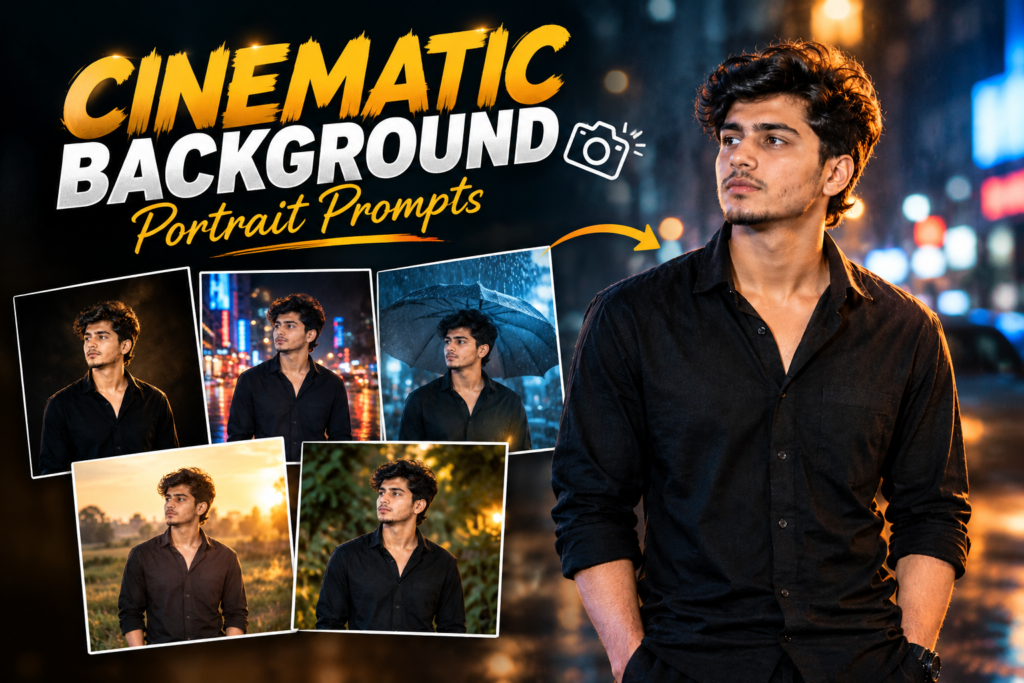
Have you ever taken a good photo but felt that the background was too simple? Maybe you want city lights, a rainy street, a dark studio, or a movie-style scene behind you. You can create these looks with AI photo editing prompts without arranging a real photoshoot.
These Cinematic Baground Portrait Prompts are useful for turning ordinary photos into cinematic portraits with better lighting, realistic backgrounds, and a film-like atmosphere. You can try them with ChatGPT, Gemini, or another AI image editor that supports photo uploads and editing.
Below, you will find free cinematic background portrait prompts for boys, girls, and anyone who wants an aesthetic portrait. Copy a prompt, upload your photo, and adjust the scene to match your style.
What Are Cinematic Background Portrait Prompts?
Cinematic background portrait prompts are instructions that tell an AI image editor how to change the background, lighting, colors, and overall mood of a portrait. You can also use Normal to 4K Ultra HD Gemini Photo Editing Prompts to improve image clarity and create sharper, more detailed portraits while keeping the original look natural.
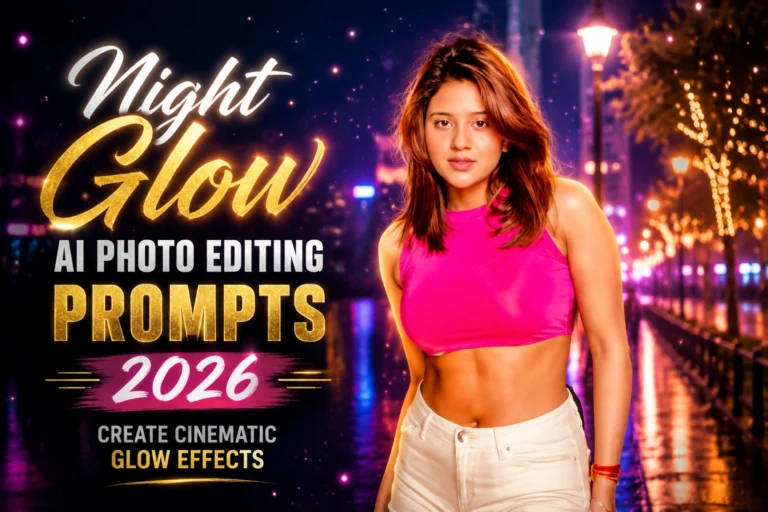
For example, you can turn a simple outdoor photo into a night-city portrait with glowing lights. You can also create a rainy street scene, a foggy mountain background, or a professional studio look.
The best results usually come from describing three things clearly:
- Background: Where should the person appear?
- Lighting: Should the scene look warm, dark, soft, or dramatic?
- Face and identity: Should the original face, hairstyle, and natural features stay the same?
You do not need complicated photography terms to get started. A clear description of the scene is often enough.
Best Cinematic Background Portrait Prompts
Here are eight prompts for different styles. Each one is ready to copy and customize with your own photo.
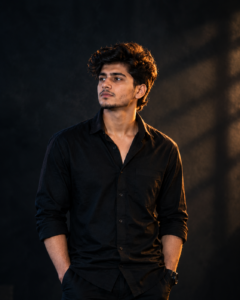
Dark Cinematic Portrait Prompt
Cinematic Night City Background Prompt
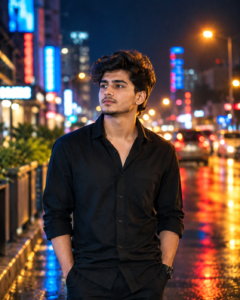
Rainy Street Cinematic Portrait Prompt

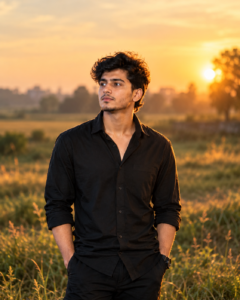
Golden Hour Cinematic Portrait Prompt
How to Use Cinematic Photo Prompts in ChatGPT or Gemini
You can try these prompts with an AI tool that supports image editing. The exact options may differ depending on the tool and the account you use.
- Choose a clear photo. Use an image where your face is visible and not heavily blurred.
- Open your AI image editor. Choose a tool that lets you upload an image and request edits.
- Upload your photo. Wait for it to finish attaching.
- Copy a prompt. Pick a background style from the list above and paste its instructions.
- Check the result. Look at your face, hair edges, lighting, and background details.
- Ask for small corrections. If the face changes or the background looks fake, request a correction instead of rewriting the entire prompt.
For example, you can follow up with: “Keep the face exactly like the original photo. Improve the background blending and match the lighting on the face to the scene.”
Tips for More Realistic Cinematic Portraits
A cinematic photo does not need dozens of effects. A few well-chosen details can make a bigger difference.
- Keep the face natural: Ask the AI to preserve your original facial features and skin texture.
- Describe the background clearly: “Rainy city street with distant headlights” gives the tool a clearer direction than simply saying “cinematic background.”
- Match the lighting: If the background is dark, the subject should not look like they were photographed under bright midday sunlight.
- Use background blur carefully: A soft blur can separate the subject from the scene, but too much blur may look artificial.
- Choose one main color style: Warm amber, cool blue, muted green, or black and white usually works better than mixing too many colors.
- Keep the original pose: If you only want to change the background, say so directly.
- Avoid too many effects: Extra smoke, glowing eyes, heavy skin smoothing, and excessive light flares can make a photo look less realistic.
Common Problems With AI Background Editing
Why does the AI change my face?
Some image editors recreate parts of the entire image instead of changing only the background. If you are using Swimming Pool AI Photo Editing Prompts, use a clear reference photo and explicitly ask the tool to preserve your facial identity, hairstyle, and skin tone while creating a realistic poolside scene. Results can still vary depending on the tool and prompt you use.
Why does the person look pasted onto the background?
This usually happens when the subject’s lighting does not match the scene. Ask the editor to match the light direction, shadows, color temperature, and brightness of the person with the new background.
Why does the background look fake?
The scene may contain too many effects or unclear instructions. Start with one location and one lighting style. For example, use a night street with soft blue light and distant bokeh rather than adding fog, rain, neon, sparks, and dramatic flares all at once.
Can I change the background without changing my clothes?
Yes. Include a clear instruction such as: “Replace only the background. Keep the original face, outfit, pose, and body proportions unchanged.” Some tools may still make small changes, so check the final image carefully.