Instagram Viral Aura AI Video Editing Tutorial Create Trending AI Reels 2026
Have you seen those Instagram Reels where a normal photo suddenly turns into a cinematic video? The person moves naturally, the camera follows them, the lighting looks dramatic, and the whole video feels like it was shot for a movie.
That is the idea behind the latest AI video editing trend. You do not always need a camera, expensive editing software, or a professional video setup. With a good photo, a suitable reference video, and the right instructions, you can create a similar style of Reel with an AI video tool.
In this Instagram Viral AI Video Editing Tutorial, I will show you how the process works, what kind of photo you should use, how to write the video prompt, how to create the video, and what to do when the AI output does not look right.
What Is Instagram Viral AI Video Editing?
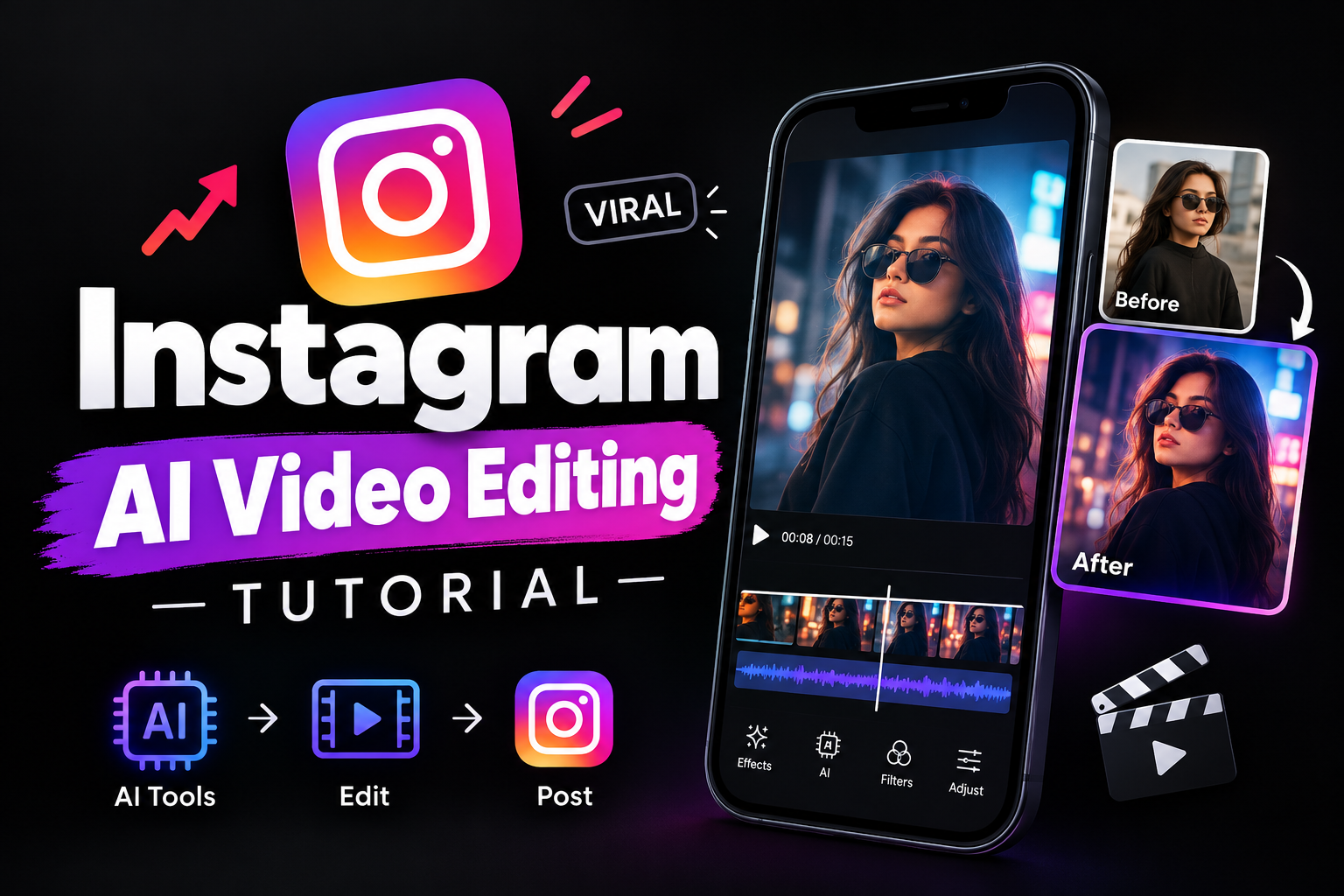
Instagram viral AI video editing is a style where AI turns a photo or reference material into a short video with realistic movement and cinematic effects.
Instead of simply adding a zoom effect to a photo, AI can create movement around the subject. Depending on the tool and prompt, you can control things such as body movement, camera direction, lighting, background, facial appearance, clothing and overall mood.
The current trend also includes AI Aura Videos, where creators use dramatic lighting, smooth camera movement, slow-motion effects and a strong cinematic look to make an ordinary photo feel more like a movie scene.
The interesting part is that you can start with a normal photo taken on your phone.
Why Is This AI Video Trend Popular on Instagram?
Instagram is full of short videos, so creators are always looking for something that makes people stop scrolling.
A normal selfie might look nice, but turning that same selfie into a cinematic moving scene can make it much more interesting. AI also makes it possible to experiment with scenes that would be difficult or expensive to record in real life.
For example, you could take one portrait and turn it into a walking scene, a slow-motion fashion video, a dramatic cinematic shot, or an aesthetic Reel.
The goal is not to make every video look perfect. Sometimes a simple and realistic movement looks much better than adding too many effects.
What You Need to Create an Instagram Viral AI Video
You do not need a complicated setup.
Here is what I recommend:
- A clear photo of yourself
- A suitable reference video if your AI tool supports video references
- An AI video generation tool
- A good video prompt
- A little patience for testing different results
- A video editor for final music, text or minor adjustments
A clean photo is especially important. If the face is blurry or heavily edited, the AI may struggle to maintain the same appearance throughout the video.
Choose the Right Photo First
This is one step beginners often ignore.
Before opening an AI video tool, choose a photo where your face is clearly visible. Avoid images with heavy filters, extreme shadows, sunglasses or objects covering most of your face.
A front-facing or slightly angled portrait usually works well.
If you want a full-body video, use a full-body image where your hands, legs and clothes are clearly visible. This gives the AI more information about your body position.
You do not necessarily need a professional photo. A good phone photo with enough light can be enough.
Use a Reference Video for Better Movement
One of the interesting techniques used in current AI video trends is motion transfer.
Instead of asking AI to invent every movement itself, you can give it a reference video and ask it to follow the movement while using your photo as the identity reference. This can also work well with Bandage Mystery Face AI Photo Editing Prompts when you want to create a unique visual style while keeping the person’s identity consistent.
The SurajSpace tutorial uses this approach and tells the AI to follow body movement, posture, gestures, walking direction, facial reactions, camera movement and timing from the reference.This can produce more controlled results than simply writing something like:
“Make my photo into a viral cinematic video.”
The more clearly you explain what should stay the same and what should change, the easier it is for the tool to understand your goal.
Instagram Viral AI Video Prompt
Here is an original prompt you can try with a compatible AI video generator:
Create a realistic cinematic vertical video using my uploaded photo as the identity reference.

Keep my face, hairstyle, clothing, body proportions and overall appearance consistent throughout the video. Use natural and realistic body movement with smooth walking, subtle head movement and natural hand gestures.

Create a stylish cinematic environment with realistic lighting, soft background depth and a professional camera look. Add smooth camera movement that follows the subject naturally.

Keep the face stable and recognizable in every frame. Avoid face distortion, extra fingers, warped hands, changing clothes, sudden body movements or unnatural poses.

Make the movement physically realistic and smooth. Keep the scene visually clean and suitable for an Instagram Reel.

Use a vertical 9:16 composition and create a short cinematic clip with natural motion and polished visual quality.
You can change the scene according to your idea. For example, you can ask for a street scene, luxury environment, sunset location, studio setup or another cinematic background.
How to Create Instagram Viral AI Video
Now let’s get into the actual process.
Step 1: Select Your Photo
Choose the photo you want to use as your main character.
Make sure your face is visible and the image has good lighting. If you want full-body movement, select a photo where your complete body is visible.
Step 2: Prepare a Reference Video
If your selected AI video tool supports reference videos, choose a short clip with the type of movement you want.
For example, you could use a clip showing:
- Walking
- Turning around
- Looking toward the camera
- Adjusting clothes
- Slow-motion movement
- Simple hand gestures
Do not choose a reference with extremely complicated movement when you are trying this for the first time.
Simple movement is usually easier to reproduce.
Step 3: Open Your AI Video Generator
Open the AI video tool you want to use and look for an image-to-video or reference-based video option.
The exact buttons can change depending on the tool, so focus on finding the option that allows you to provide your image and, where supported, a reference video.
The SurajSpace workflow, for example, uses Google Flow and selects the video option after uploading the reference material.
Step 4: Upload Your Image
Upload your selected photo.
Check the preview before generating the video. If the face looks blurry or the image is cropped badly, use another photo.
A few minutes spent choosing the right image can save you several failed generations later.
Step 5: Add Your Reference Video
If the tool supports a reference video, upload it and make sure it is being used for movement rather than as the final visual scene.
This distinction matters.
You want the AI to understand how the person moves, while your uploaded image provides the person’s appearance.
Step 6: Select the Video Option
Choose the video generation mode.
If you are creating content specifically for Instagram Reels, select a vertical format such as 9:16 when the tool provides that option.
This will make the final video fit the usual Reel layout better.
Step 7: Add Your Prompt
Paste your video instructions into the prompt box.
Do not make the prompt unnecessarily complicated. Explain the subject, movement, camera style, lighting, background and things that should remain consistent.
For example:
Subject: One person from the uploaded photo
Movement: Slow natural walking
Camera: Smooth tracking shot
Lighting: Soft cinematic lighting
Format: Vertical 9:16
Quality: Realistic and stable
This structure makes it easier to modify the idea later.
Step 8: Generate the Video
Now generate your first version.
Do not worry if the first result is not perfect.
AI video generation can produce different results from the same idea. Sometimes the face looks good but the hands look strange. Other times the movement works well but the background changes.
Treat the first generation as a test.
Step 9: Check the Face and Body Movement
Watch the entire video instead of checking only the first frame.
Look for:
- Face changing
- Hands becoming distorted
- Extra fingers
- Clothes changing
- Body warping
- Strange walking
- Background movement
- Sudden camera jumps
If you notice a problem, improve the prompt or change the reference image.
Step 10: Add Music and Final Effects
Once you have a good AI video, you can take it into your preferred video editor.
Add suitable music, text, transitions or sound effects if needed.
Do not overload the video with effects. If the AI footage already looks cinematic, a simple edit can often look better.
How to Make the AI Video Look More Realistic
The biggest difference between a good AI Reel and a bad one is often consistency.
Your face should remain recognizable. Your clothing should stay similar. Your body should not suddenly change shape.
Use phrases such as:
- Keep the same identity
- Maintain facial consistency
- Preserve the same clothing
- Keep body proportions stable
- Use natural human movement
- Avoid body distortion
- Keep camera movement smooth
- Maintain realistic lighting
These instructions tell the AI what should remain stable.
Why Does My AI Video Change My Face?
This is a common problem.
AI may slightly change facial features because it is generating new frames rather than simply playing back your original photo.
If the face keeps changing, try a clearer photo with better lighting. You can also make the prompt more specific about maintaining the person’s identity. For creative projects, Creative Scrapbook Style AI Photo Editing Prompts can also help guide the overall visual look while keeping the edit more consistent.
Avoid using a photo with heavy beauty filters because the AI may have less natural facial information to work with.
Why Are the Hands Looking Weird?
Hands are still one of the difficult areas for many AI video generators.
If the reference video has fast hand movements, try using a simpler clip.
A slow walking video with limited hand movement may give you a better result than a complicated dance or action sequence.
You can also add instructions such as:
“Keep hands anatomically correct with natural finger movement and avoid extra fingers or distorted limbs.”
It does not guarantee a perfect result, but it gives the model a clearer target.
How to Create an AI Aura Style Video
If you want the popular AI Aura look, focus on the visual mood rather than simply adding the words “aura video” to your prompt.
Try combining:
- Cinematic lighting
- Slow-motion movement
- Smooth camera tracking
- Strong subject focus
- Soft background blur
- Dramatic shadows
- Premium fashion styling
- Natural facial expression
- High-detail realistic appearance
Capleez describes the current AI Aura trend around cinematic lighting, smooth camera movements, dramatic slow motion and a strong main-character feel.
The trick is to keep the scene believable. Too much glow or too many effects can make the result look obviously artificial.
Best Instagram Reel Size for AI Videos
For Instagram Reels, a 9:16 vertical format is generally the most practical choice.
A vertical video fills the phone screen and gives you more space for a full-body subject.
If your AI tool allows you to choose the aspect ratio during generation, select 9:16 when your goal is a Reel.
Also avoid placing important text too close to the top or bottom because Instagram’s interface can cover parts of the video.
How Long Should the AI Video Be?
For a short Reel, you do not necessarily need a long AI-generated clip.
A short sequence with one clear movement can work better than a long video where the AI has more opportunities to introduce mistakes.
You can also generate multiple short clips and combine the best ones in an editor.
For example:
Clip 1: Walking toward the camera
Clip 2: Close-up face movement
Clip 3: Side camera movement
Clip 4: Final pose
Then combine them into one Reel.
This gives you more control over the final video.
Common Problems With Instagram AI Video Editing
The Face Looks Different
Use a clearer reference image and strengthen your identity-consistency instructions.
The Body Changes
Use a simple reference movement and avoid complicated poses.
The Background Keeps Changing
Describe the environment clearly and tell the AI to maintain the same setting.
The Video Looks Too Artificial
Reduce exaggerated effects and ask for natural lighting, realistic movement and physically believable motion.
The Camera Moves Too Much
Tell the AI to use a smooth and controlled camera movement rather than fast camera changes.
The Video Is Blurry
Start with a high-resolution image and avoid uploading screenshots that have already been compressed several times.
Tips for Better Instagram Viral AI Videos
Use a clean photo. Your starting image matters more than many beginners realize.
Keep the movement simple. A realistic walk can look better than complicated choreography.
Write clear instructions. Tell the AI what should move and what should remain unchanged.
Generate multiple versions. One generation may have a better face while another may have better movement.
Do not over-edit. Let the AI-generated footage remain the main focus.
Use vertical format. Choose 9:16 when creating content specifically for Reels.
Check the complete clip. Problems can appear halfway through the video even when the opening looks perfect.
Can Beginners Create These AI Reels?
Yes.
You do not need to understand professional video editing to start experimenting with this trend.
The basic workflow is simply:
Photo → Reference → Prompt → AI Video → Final Editing → Instagram Reel
The difficult part is usually not clicking the buttons. It is learning how to choose a good reference and describe the movement clearly.
Once you understand that, you can experiment with different styles without starting from zero every time.
Final Thoughts
The Instagram Viral AI Video Editing Tutorial trend is a fun way to turn an ordinary photo into something that feels much more cinematic. With a clean image, a simple reference movement and a well-written prompt, beginners can experiment with realistic AI-generated Reels without complicated editing software.
The best results usually come from keeping things simple. Instead of asking AI to change everything at once, focus on one clear movement, stable facial identity, natural lighting and smooth camera motion.
Try a few different versions and keep the one that looks the most natural. Sometimes the simplest AI video ends up being the one that looks best on Instagram.